MemOS MCP Integration Guide
This guide helps you configure MemOS MCP service in platforms like Coze Space, enabling seamless integration between your agent and the memory system.
Choose an MCP Deployment Method
MemOS provides two MCP deployment options. Choose based on your needs:
Use MemOS Cloud Service (Recommended)
If you want to connect quickly without deploying your own server, MemOS official cloud service is recommended.
Advantages:
- ✅ Out of the box, no deployment required
- ✅ High availability guarantees
- ✅ Automatic scaling and maintenance
- ✅ Supports multiple clients (Claude, Cursor, Cline, etc.)
How to configure:
Visit MemOS Cloud MCP Configuration Guide for detailed instructions.
Main steps:
- Register and get an API Key in MemOS API Console
- Configure
@memtensor/memos-api-mcpservice in your MCP client - Set environment variables (
MEMOS_API_KEY,MEMOS_USER_ID,MEMOS_CHANNEL)
Deploy MCP Service Yourself
If you need a private deployment or custom requirements, you can deploy MCP service on your own server.
Advantages:
- ✅ Fully private data
- ✅ Configurable and customizable
- ✅ Full control of the service
- ✅ Suitable for internal enterprise use
Prerequisites:
- Python 3.9+
- Neo4j database (or another supported graph database)
- HTTPS domain (required by platforms like Coze)
Continue reading for detailed deployment steps.
Self-Hosted MCP Service Configuration
The content below applies to users who deploy MCP service themselves.
Architecture
Self-hosted MCP service uses the following architecture:
Client (Coze/Claude, etc.)
    ↓ [HTTPS]
MCP Server (port 8002)
    ↓ [HTTP calls]
Server API (port 8001)
    ↓
MemOS Core Service
Component overview:
- Server API: provides REST APIs (
/product/*) to handle memory CRUD - MCP Server: exposes the MCP protocol over HTTP and calls Server API to complete operations
- HTTPS reverse proxy: platforms like Coze require HTTPS secure connections
Step 1: Start Server API
Server API is the backend for MCP service and provides actual memory management capabilities.
cd /path/to/MemOS
python src/memos/api/server_api.py --port 8001
Verify whether Server API is running:
curl http://localhost:8001/docs
If it returns the API documentation page, startup succeeded.
Server API loads configuration automatically. Ensure Neo4j and other dependencies are configured correctly. You can refer to
examples/data/config/tree_config_shared_database.json as an example configuration.Step 2: Start MCP HTTP Service
Start MCP service in another terminal:
cd /path/to/MemOS
python examples/mem_mcp/simple_fastmcp_serve.py --transport http --port 8002
After MCP service starts, it will show information similar to:
╭──────────────────────────────────────────────────╮
│       MemOS MCP via Server API                   │
│       Transport:   HTTP                          │
│       Server URL:  http://localhost:8002/mcp     │
╰──────────────────────────────────────────────────╯
Environment variable configuration (optional):
You can configure the Server API address via a .env file or environment variables:
export MEMOS_API_BASE_URL="http://localhost:8001/product"
MCP service provides the following tools:
add_memory: add memorysearch_memories: search memorieschat: chat with the memory system
examples/mem_mcp/simple_fastmcp_serve.pyStep 3: Configure an HTTPS Reverse Proxy
Platforms like Coze require HTTPS. You need to set up an HTTPS reverse proxy (e.g., Nginx) to forward traffic to MCP service.
Nginx configuration example:
server {
    listen 443 ssl http2;
    server_name your-domain.com;

    ssl_certificate /path/to/cert.pem;
    ssl_certificate_key /path/to/key.pem;

    location /mcp {
        proxy_pass http://localhost:8002/mcp;
        proxy_http_version 1.1;
        proxy_set_header Upgrade $http_upgrade;
        proxy_set_header Connection "upgrade";
        proxy_set_header Host $host;
        proxy_set_header X-Real-IP $remote_addr;
        proxy_set_header X-Forwarded-For $proxy_add_x_forwarded_for;
        proxy_set_header X-Forwarded-Proto $scheme;

        # SSE support
        proxy_buffering off;
        proxy_cache off;
    }
}
Make sure you use a valid SSL certificate. Self-signed certificates may not be accepted by platforms like Coze. You can use Let's Encrypt to obtain a free certificate.
Step 4: Test MCP Service
Use the client test script to verify the service:
cd /path/to/MemOS
python examples/mem_mcp/simple_fastmcp_client.py
Example success output:
Working FastMCP Client
========================================
Connected to MCP server

  1. Adding memory...
    Result: Memory added successfully

  2. Searching memories...
    Result: [search result]

  3. Chatting...
    Result: [AI response]

✓ All tests completed!
Configure MCP in Coze Space
After the service is deployed, configure the MCP connection in Coze Space.
Step 1: Open Coze Space and go to the tool configuration page
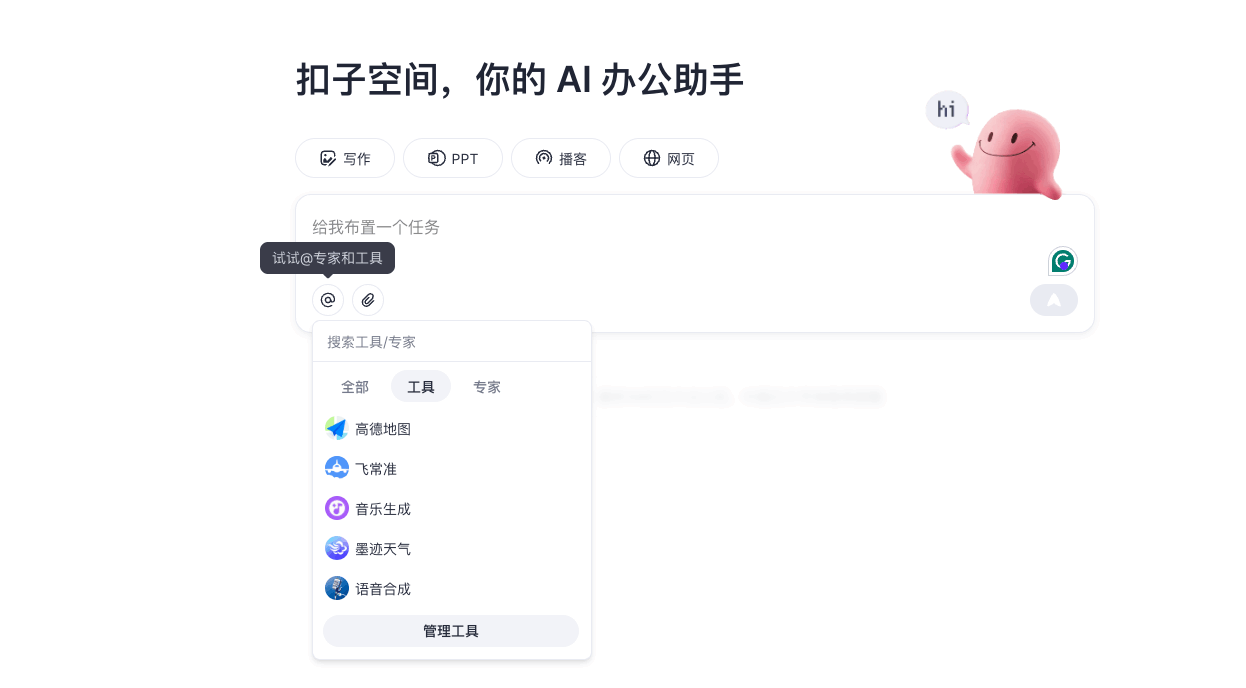
Step 2: Add a custom MCP tool
Add a custom tool on the tool configuration page:

Step 3: Configure the MCP endpoint URL
Configure the MCP endpoint URL with your HTTPS address:
https://your-domain.com/mcp
Available MCP tools:
- add_memory: add a new memory
- search_memories: search existing memories
- chat: memory-based chat
After configuration, test whether MCP connection works in Coze. Ensure each tool can be called successfully.
Use REST API Directly (Advanced)
For scenarios that require more flexible integration, you can call Server API’s REST endpoints directly.
Step 1: Start Server API
cd /path/to/MemOS
python src/memos/api/server_api.py --port 8001
Port notes
- Server API runs on port 8001 by default
- Provides
/product/*REST API endpoints
Step 2: Configure custom tools in Coze IDE
- In Coze, choose the "IDE plugin" creation method
- Configure requests to your deployed Server API service

Step 3: Implement the add_memory tool
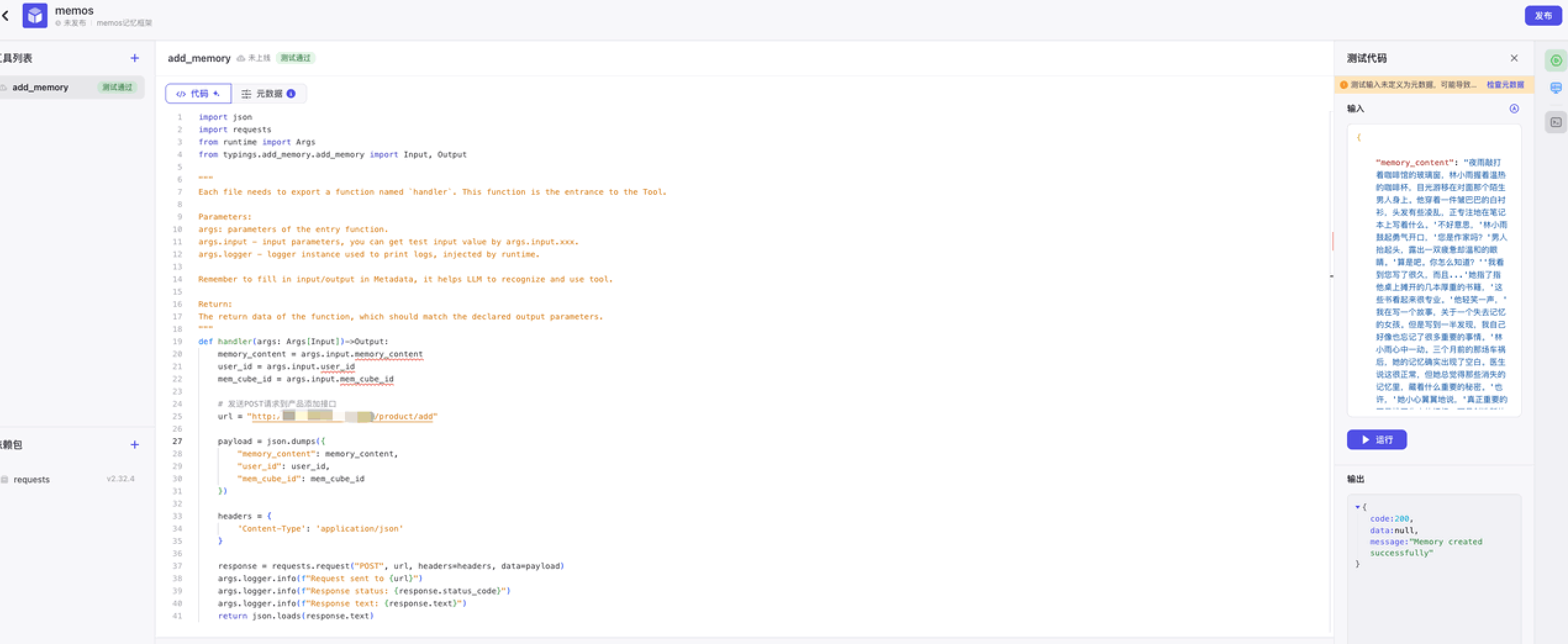
Code example: configure and publish the add_memory operation in the IDE:
Full code is as follows:
import json
import requests
from runtime import Args
from typings.add_memory.add_memory import Input, Output

def handler(args: Args[Input])->Output:
    memory_content = args.input.memory_content
    user_id = args.input.user_id
    cube_id = args.input.cube_id

    # Call Server API add endpoint
    url = "https://your-domain.com:8001/product/add"
    payload = json.dumps({
        "user_id": user_id,
        "messages": memory_content,  # Supports string or message array
        "writable_cube_ids": [cube_id] if cube_id else None
    })
    headers = {
        'Content-Type': 'application/json'
    }

    response = requests.post(url, headers=headers, data=payload, timeout=30)
    response.raise_for_status()

    return response.json()
Other tool implementations:
Similarly, implement the search and chat tools:
# Search tool
def search_handler(args: Args[Input]) -> Output:
    url = "https://your-domain.com:8001/product/search"
    payload = json.dumps{
        "user_id": args.input.user_id,
        "query": args.input.query,
    })
    headers = {
        'Content-Type': 'application/json'
    }

    response = requests.post(url, headers=headers, data=payload, timeout=30)
    response.raise_for_status()

    return response.json()

# Chat tool
def chat_handler(args: Args[Input]) -> Output:
    url = "https://your-domain.com:8001/product/chat/complete"
    payload = json.dumps({
        "user_id": args.input.user_id,
        "query": args.input.query
    })
    response = requests.post(url, json=payload, timeout=30)
    return response.json()
Step 4: Publish and test tools
After publishing, you can view the plugin under "My Resources":
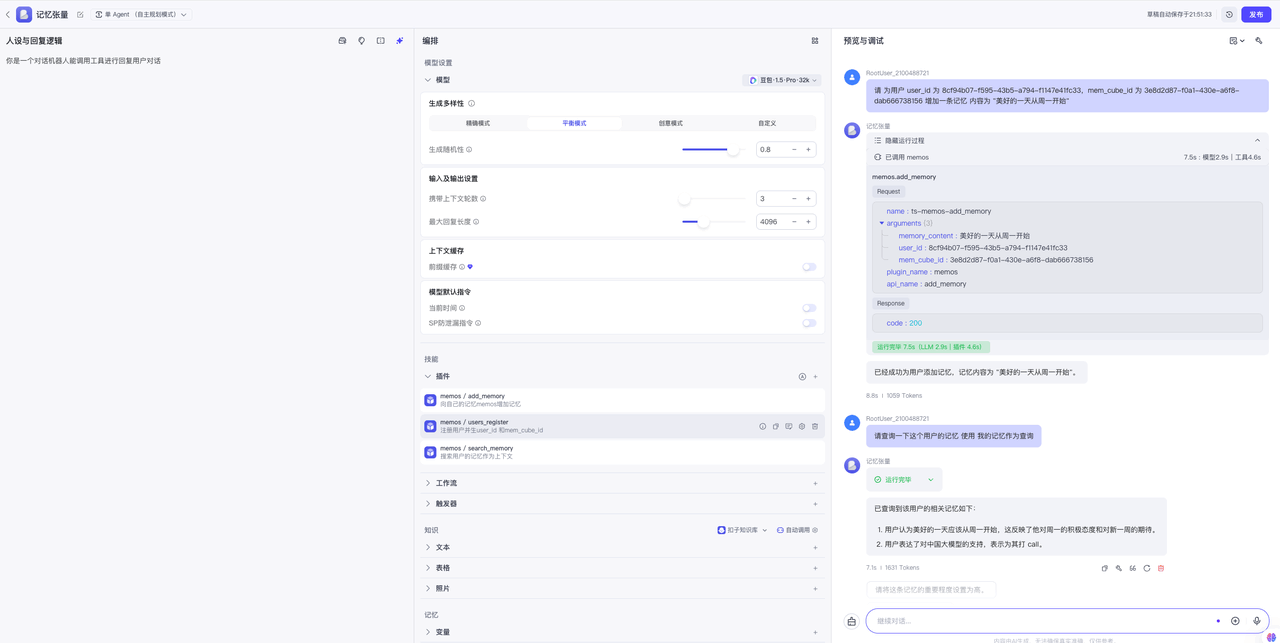
Step 5: Integrate into agent workflow
Add the plugin into the agent workflow:
- Create a new agent or edit an existing agent
- Add the published MemOS plugin to the tool list
- Configure the workflow to call memory tools
- Test memory write and retrieval functions
FAQ
Q1: MCP service cannot connect to Server API
Solution:
- Check whether Server API is running:
curl http://localhost:8001/docs - Check whether environment variable
MEMOS_API_BASE_URLis configured correctly - Check MCP service logs and confirm the call address
Q2: Coze cannot connect to MCP service
Solution:
- Make sure you use HTTPS
- Check whether the SSL certificate is valid
- Test reverse proxy configuration:
curl https://your-domain.com/mcp - Check firewall and security group settings
Q3: Neo4j connection failed
Solution:
- Ensure Neo4j service is running
- Check connection info in the configuration file (uri, user, password)
- Refer to
examples/data/config/tree_config_shared_database.jsonas an example configuration
Q4: How to see complete API examples?
Reference files:
- MCP server:
examples/mem_mcp/simple_fastmcp_serve.py - MCP client:
examples/mem_mcp/simple_fastmcp_client.py - API tests:
examples/api/server_router_api.py
Summary
With this guide, you can:
- ✅ Choose a suitable MCP deployment option (cloud or self-hosted)
- ✅ Complete the full MCP service deployment process
- ✅ Integrate MemOS memory features into platforms like Coze
- ✅ Integrate directly via REST API
No matter which option you choose, MemOS can provide your agent with powerful memory managementders=headers, data=payload) return json.loads(response.text)
- Use the standard Server API parameter format
messages: replaces the previousmemory_content, supports string or message arraywritable_cube_ids: replaces the previousmem_cube_id, supports multiple cubes- Server API runs on port 8001, and the path is
/product/add - Ensure it matches MemOS Server API interface. You can refer to the example in
examples/api/server_router_api.pyIDE configuration
In the IDE, you can customize tool parameters, return value formats, etc., ensuring consistency with MemOS API. Use this method to implement the search endpoint and user registration endpoint, then click Publish.
Publish and Use the Plugin
After publishing, you can view the plugin under "My Resources" and integrate it into the agent workflow as a plugin:
Build an Agent and Test
After building the simplest agent, you can test memory operations:
- Create a new agent
- Add the published memory plugin
- Configure the workflow
- Test memory write and retrieval functions
With the above configuration, you can successfully integrate MemOS memory features in Coze Space and provide powerful memory capabilities for your agent.